

Getting Started

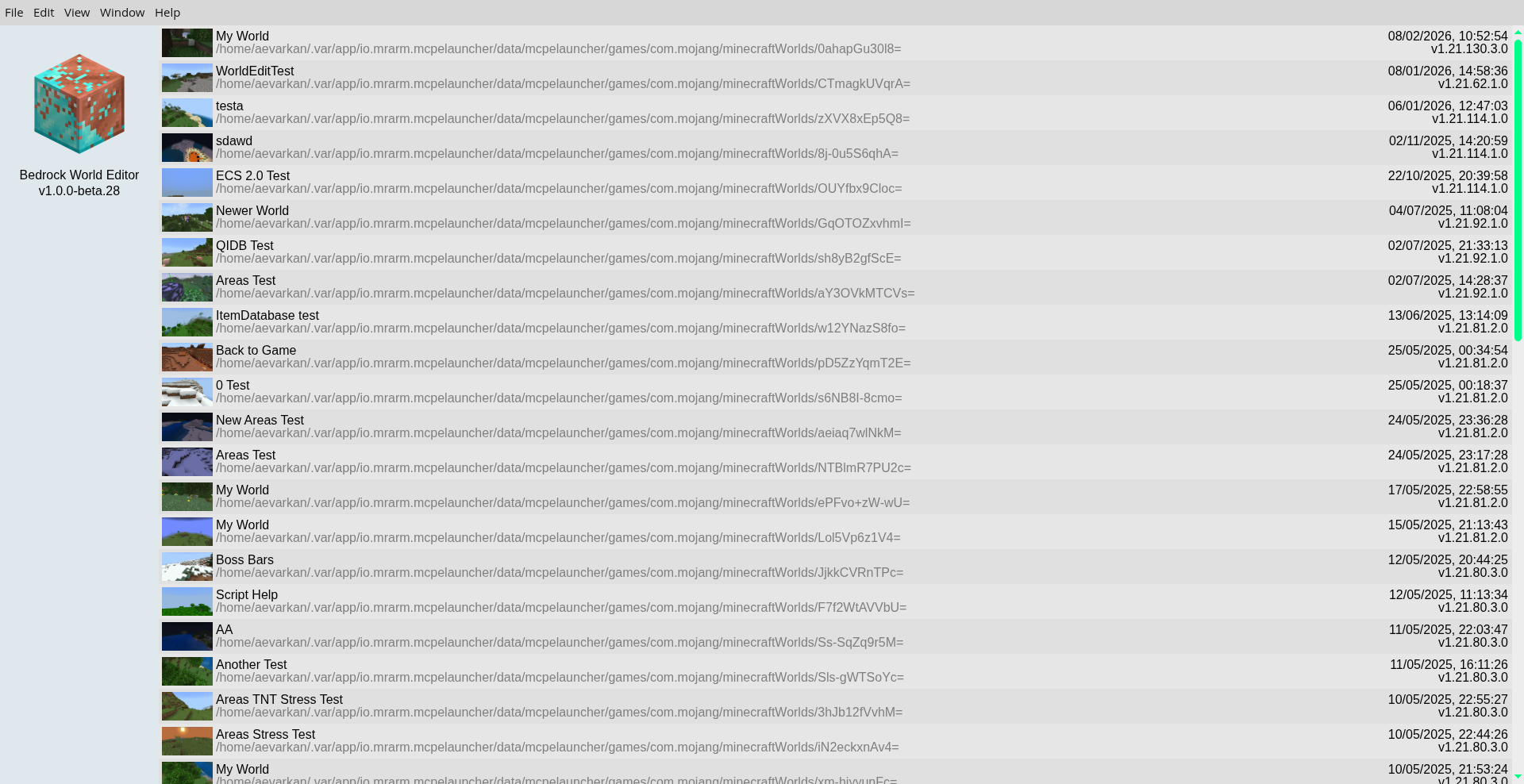
Upon opening the app, you will be greeted by a list of your Minecraft worlds. If your world doesn't appear, try pressing "Show more" at the bottom of the list.
To begin editing, open the world you'll be making changes to by clicking on its tab in the list.
You can refresh the worlds list by clicking the app logo on the left.
NOTE
If your world still doesn't show up after pressing "Show more", then that is a bug. File an issue here with details of your Minecraft configuration.
World View
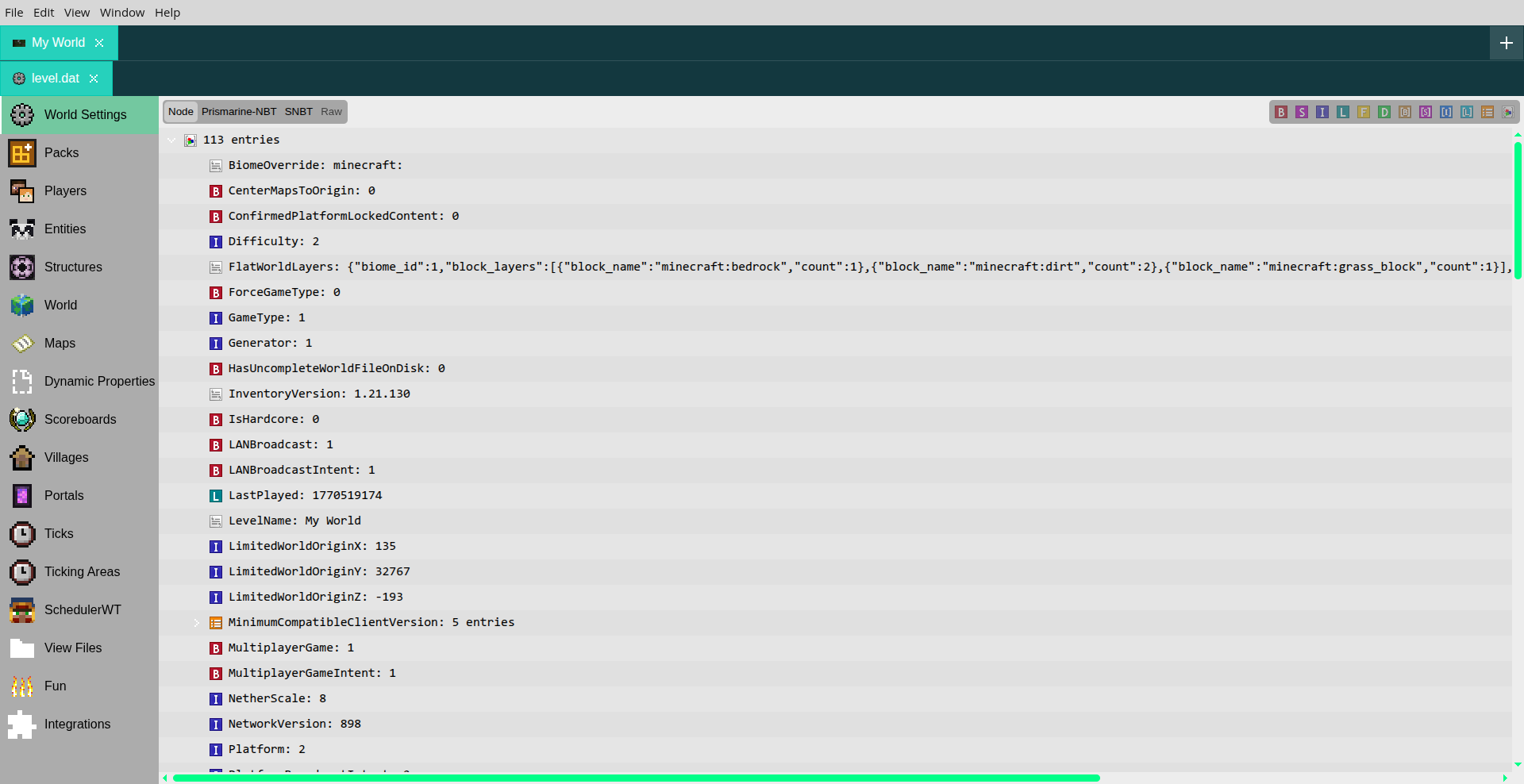
Once you have opened a world, you will see a selection of tabs to the left, each pertaining to an aspect of the world you can edit. Here, the World Settings tab is selected.
Depending on the tab, you may have a selection of Node, Prismarine-NBT, SNBT, or another format of displaying the data. For most tabs, the Node editor format will be available.
Database Tab
Minecraft Bedrock uses LevelDB to store world data, a flat key-value database. Due to this flat nature, every single key-value pair can be sorted in one list. This is what the View Files tab displays.
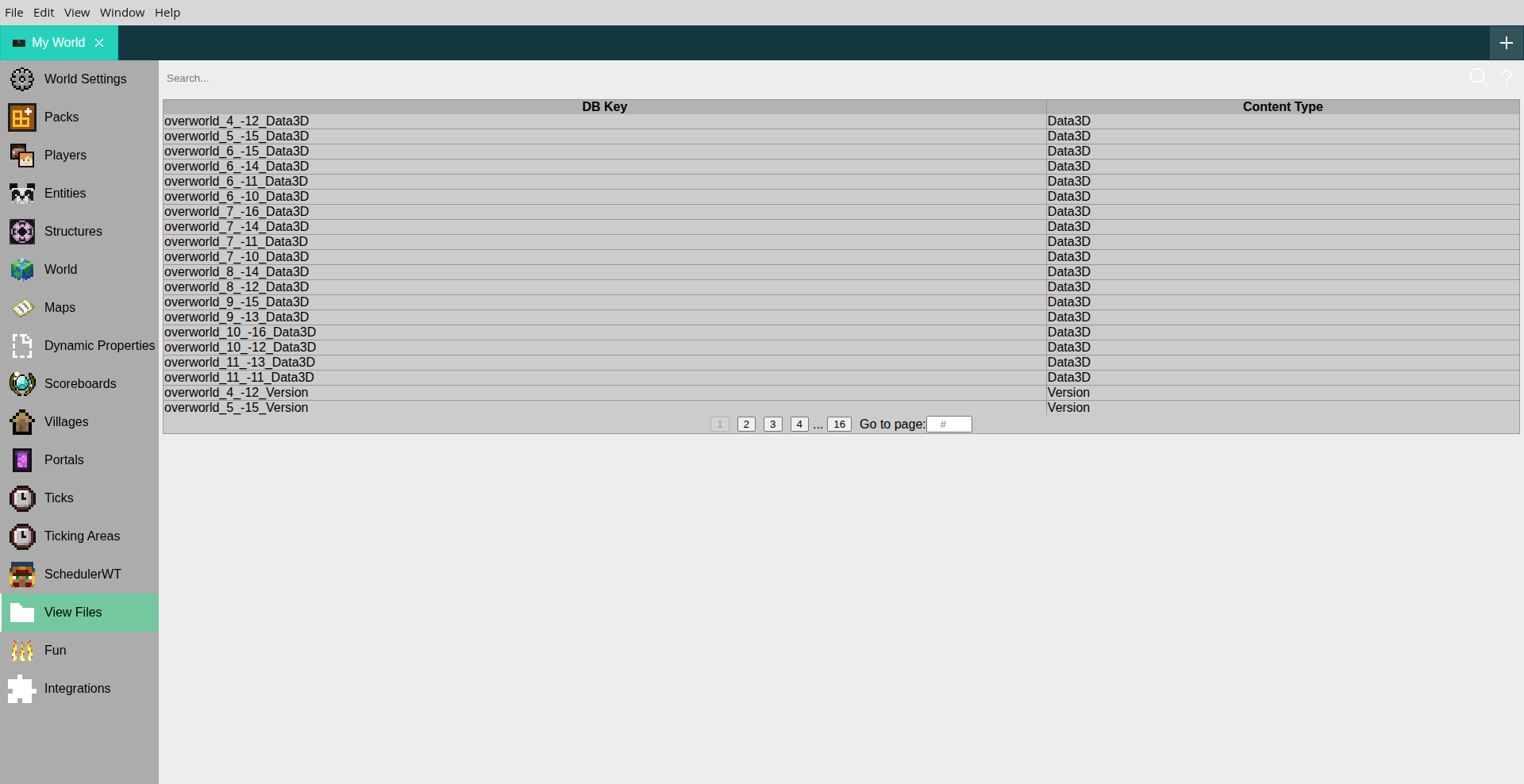
Unlike other editors, such as the Universal Minecraft Tool, Bedrock World Editor is capable of editing almost every single type of data in the LevelDB in a human-readable format, while other editors will either not allow you to edit many types, or only allow you to edit them as binary data.
Integrations Tab

Reason: This section is missing information on the Lily's Money integration.
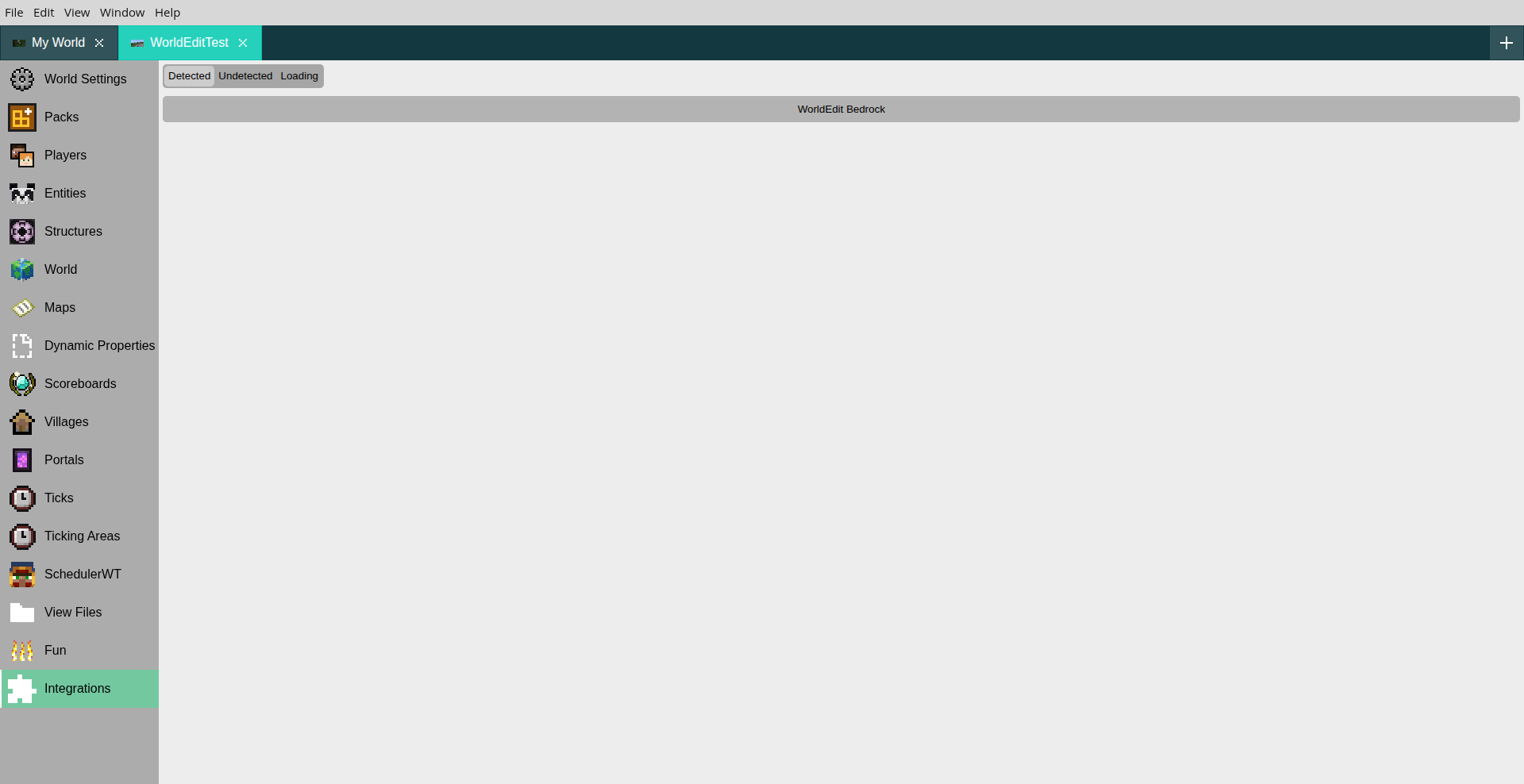
As the Script API for Minecraft Bedrock is rather limiting, add-ons can struggle to implement advanced features. The Integrations tab allows add-ons to leverage Bedrock World Editor's capabilities, bypassing constraints of the Script API.
Currently, WorldEdit Bedrock by SIsilicon leverages Bedrock World Editor for its biome modification and structure import export features. For more information, see the dedicated integration page here.
NOTE
Integrations are implemented on a case-by-case basis. If you would like to add an integration for your add-on, make a suggestion here.
Scripting
_JE1_BE1.png)
Bedrock World Editor allows for scripting in JavaScript via the DevTools console which can be opened with F12. The scripting can modify your world data, allowing you to preform batch operations on your world.